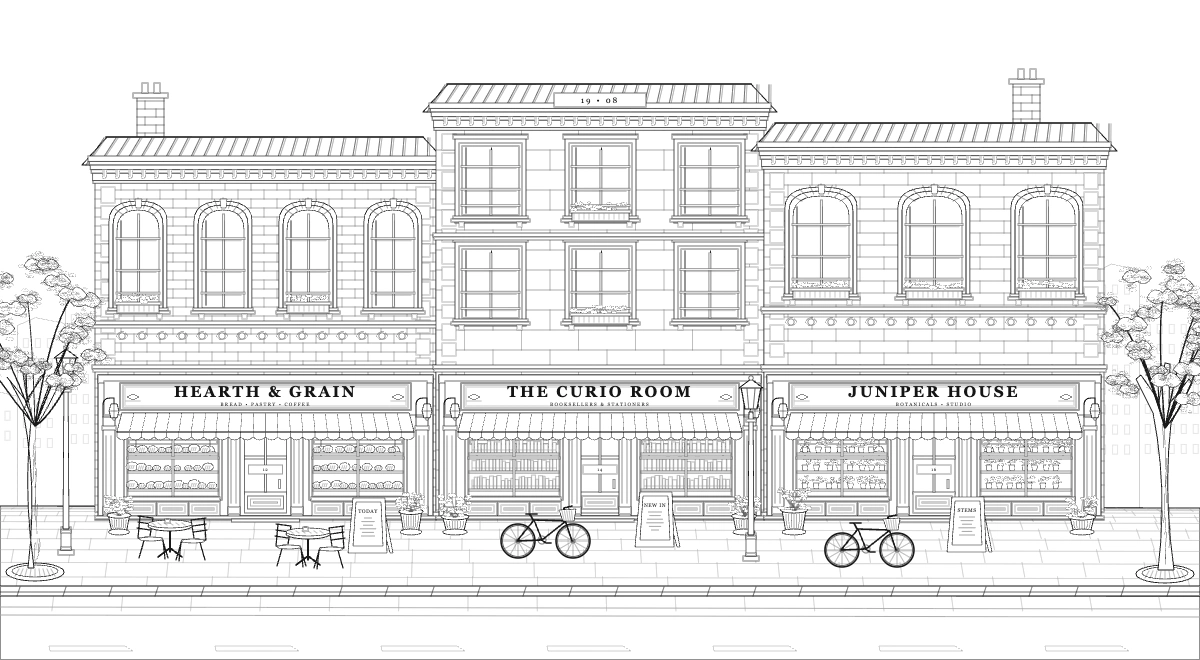
 Corner café
 Vintage camera
 Botanical study
 Alpine mark







1.
Start with an image
When generation is available, choose an accepted image and select a style. Otherwise, start with a prepared example.
AI-powered vectorization for illustrations, logos, sketches and technical drawings.

 SOURCEVECTOR
Compare the source with the linework, then open the SVG and check what you can edit.
Artwork can be prepared as illustration, logo geometry, technical linework, sketches or isolated objects. The generation workspace shows the styles and downloads that are available for the selected job.
Start with the job you need to do. See what to keep, what to redraw, and what to check before you export.
Scale a mark for a sign, edit individual shapes for a new colorway, or prepare paths for a cutter. Each job calls for a different kind of SVG.
Read the benefits of vector graphicsStart with a project: a sticker, an apparel print, a web icon, or a technical drawing.
Find a workflow for your projectWhen generation is available, choose an accepted image and select a style. Otherwise, start with a prepared example.
Drag the slider and look at which edges, details, and gaps are carried into the drawing.
Open the SVG in a vector editor, select a path, and verify that the geometry is editable.
Learn when vector is the right format, how to prepare a source image, and what to check before handing off a file.
Open Create to check if live generation is available and which input formats are accepted. You can inspect prepared artwork without uploading anything.
SVG is a vector file format that describes shapes and curves. You can scale it without adding pixels and edit its paths in tools such as Illustrator and Inkscape.
Yes. Open any sample in the gallery and download its SVG. No account is required for reference downloads.
Not necessarily. Confirm dimensions, remove overlapping shapes, and check which paths are closed in your cutter software before sending a job.
Prepared references are available in SVG. Live jobs show only the exports the connected workflow returned. DWG is not listed as a target export.
When live generation is available, selecting a file previews it in your browser. Choosing Generate vector sends it to the processing service.