SVG Artwork for Laser Cutting
A sign or ornament can look correct in a browser and still fall apart when cut. PicVec AI can preview a local reference and show demonstration SVGs. It neither generates cut files from uploads nor validates files for a machine.
On this page
Decide which pieces must stay attachedDraw a line for each intended operationPlan for fit using the actual materialPrepared artwork reference
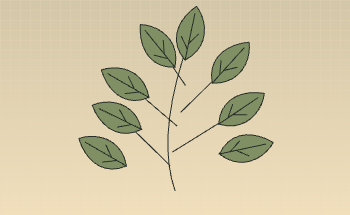

This reference illustrates the geometry. It is not a PicVec AI engine result.
Compare and download the referenceDecide which pieces must stay attached
Sketch what remains after the waste is removed. In a stencil, letters such as A and O need bridges to hold their centers. For an ornament, check that the hanging hole leaves enough material at the edge. Confirm minimum feature sizes with the shop for your chosen material.
Draw a line for each intended operation
A centerline cut is different from a thick stroked shape converted to outlines: expanding the stroke can make two boundaries where you intended one. Keep cutting, scoring, and engraving geometry in separate groups and use the operation conventions specified by the shop.
Plan for fit using the actual material
For slots or fitted parts, measure the stock rather than relying on its nominal thickness. Ask how the shop handles kerf compensation and avoid applying it twice. Run a small fit test with the same material before committing the full layout.
Common questions
Should every line in the SVG be closed?
No. An outline that releases a piece normally needs to close, while a score line may be open. Confirm what the machine software expects for each operation.
Can I cut the built-in demos as supplied?
Treat them as illustrations, not production files. Check scale, geometry, operation mapping, and material rules in the software used by your shop.